
Layer AniMagic by PVII
This extension gives you an easy way to orchestrate complex layer animations with efficient and powerful JavaScript. Let your imagination soar and you'll come up with hundreds of ways to use AniMagic. From cool menus that slide open, to scrolling galleries of your prized works... it's all easily attainable.
Download the Layer AniMagic by PVII extension | See AniMagic examples
To Animate a Layer:
- Select a trigger object on your page. A trigger object is either a null text link, an image, or a form button.
- Open the Behavior Panel, click the plus sign, and choose Studio Vii - Layer AniMagic by PVII. The Layer AniMagic Window will open.
If the Layer AniMagic extension is not available (grayed out) from the Behaviors menu, it's probably because there are no layers or AP Elements on your page!
The AniMagic Interface
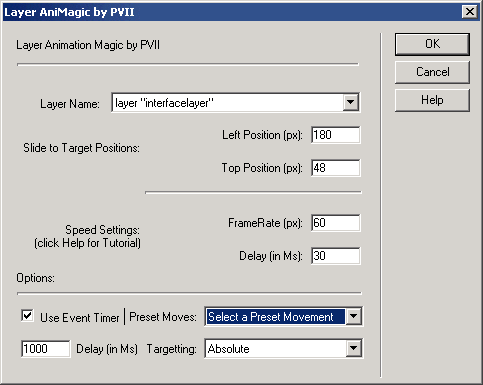
Layer Name
Choose the layer from the Layer Name dropdown list. The list will show all layers on your page.
Slide to Target Positions
Left Position (px)
Set the distance in Pixels from the left page border that you want your layer to end up at after the slide is over.
Top Position (px)
Set the distance in Pixels from the top page border that you want your layer to end up at.
Speed Settings
FrameRate (px)
Enter a Frame Rate. This is how many pixels the layer moves per millisecond. Lower numbers produce slower animations.
Delay (in Ms)
Enter a Delay. This is how many milliseconds elapse between frames. 30 is a good setting that will give similar results across browsers and Operating systems.
Preset Moves
Select a Preset move if one is applicable to your animation. Most Presets will use Relative movements. That is, if you have a relative move set to 200px right, each time you click the trigger, the layer will move 200pixels. Click 3 times and the layer will have moved a cumulative total of 600 pixels from its starting point.
Current Layer Position
This is not a movement. This useful option allows you to have AniMagic retrieve the actual position of the layer you've chosen in the Layer Name list and inserts its coordinates in the Left Position and Top Position fields.
Here are the available Preset Movements:
- Lazy Slide: Sets up a slow absolute movement from the named layer's default position.
- Right 200px: Sets up a relative movement of 200px from current position moving to the right.
- Left 200px: Sets up a relative movement of 200px from current position moving to the left.
- Up 200px: Sets up a relative movement of 200px from current position moving upward.
- Down 200px: Sets up a relative movement of 200px from current position moving downward.
- Diagonal Flooze: Sets up a relative movement of 200px from current position moving down and to the right.
- Zippy: Sets up a relative movement of 200px from current position moving quickly to the right.
It's useful to check out all the Presets on a test page to get a comparative idea of how different frame rates and delays work.
Target Values:
Absolute
Move a layer to a destination. If you click (or MouseOver) the trigger, the layer slides to the destination coordinates you've set. Clicking again will not move the layer.
Relative
Move a layer by a number of pixels from its current position. If you click (or MouseOver) the trigger, the layer slides to the destination coordinates you've set. Clicking again will slide the layer again.
Stop Moving
Stop a layer's movement. This is useful to deploy onMouseOut when using AniMagic to construct a DHTML scroller. To make a scroller, combine absolute movements onMouseOver with Stop Moving onMouseOut.
Event Timer
Use the Event Timer to orchestrate complex animations. Simply check the box and supply a delay in milliseconds. 1000 milliseconds equals one second. So, with the entry in the screen capture above, there will be a one-second delay from the time the user triggers the animation to when it actually begins.
Layer AniMagic | back to main listing